Exam strategy · 2024-05-20
The Ultimate Guide to Mastering Quiz Genius
Everything you need to know to turn your documents into interactive quizzes and lessons.
New: see the step-by-step guide with real screens. It's the quickest way to learn the app.
Welcome to Quiz Genius! This guide will walk you through every feature of the app, so you can study smarter, not harder.
1. Getting Started: The Dashboard
The Dashboard is your command center. From here, you can access all three main modes:
- Quiz Mode: Generate multiple-choice, true/false, or short answer questions.
- Note Mode: Summarize long documents into concise study notes.
- Mind Map Mode: Visualize complex relationships in your study material.
2. How to Upload a Document
To get started, you need input material.
-
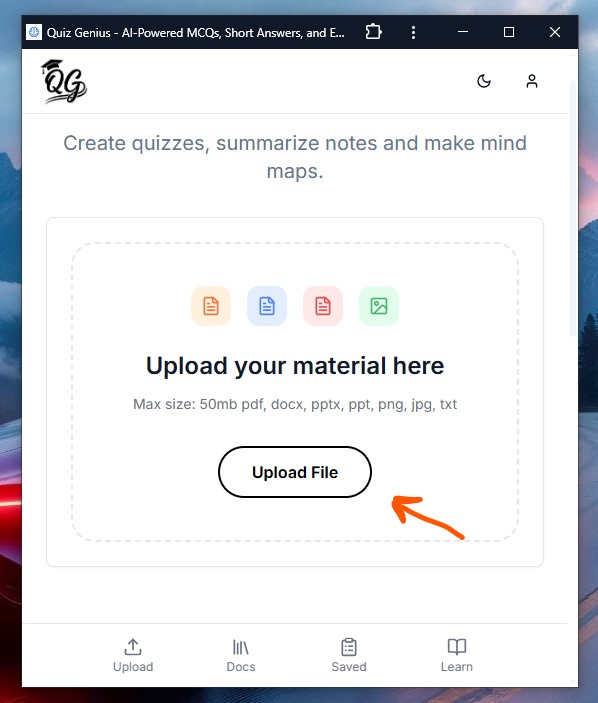
Look for the "Upload your material here" box on the dashboard.
-
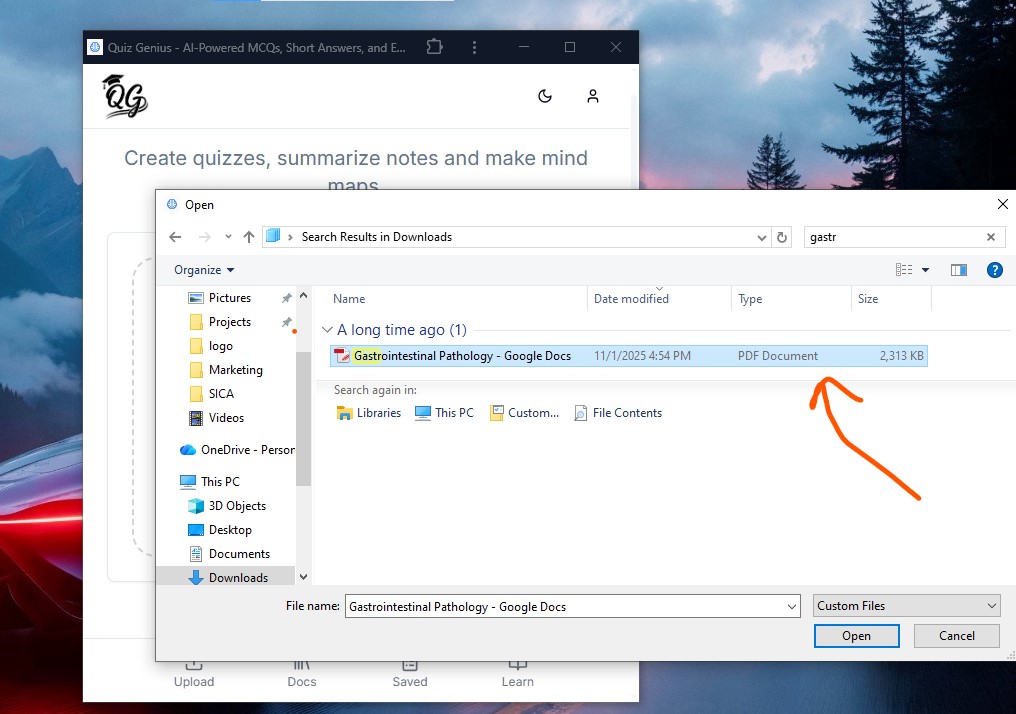
Click "Upload File" (or drag and drop your file).
-
Supported Formats: PDF, DOCX, PPTX, TXT, and Images (PNG/JPG).
-
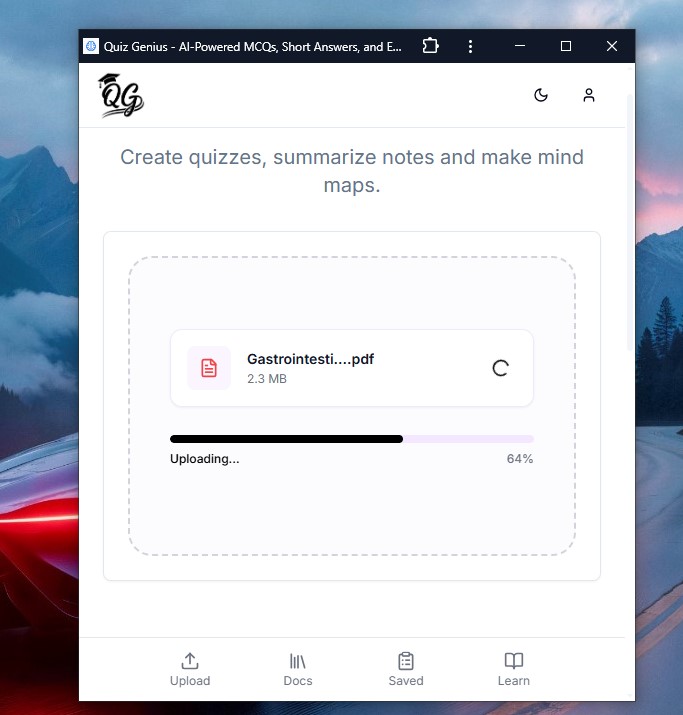
Once uploaded, your file will appear with a green checkmark.
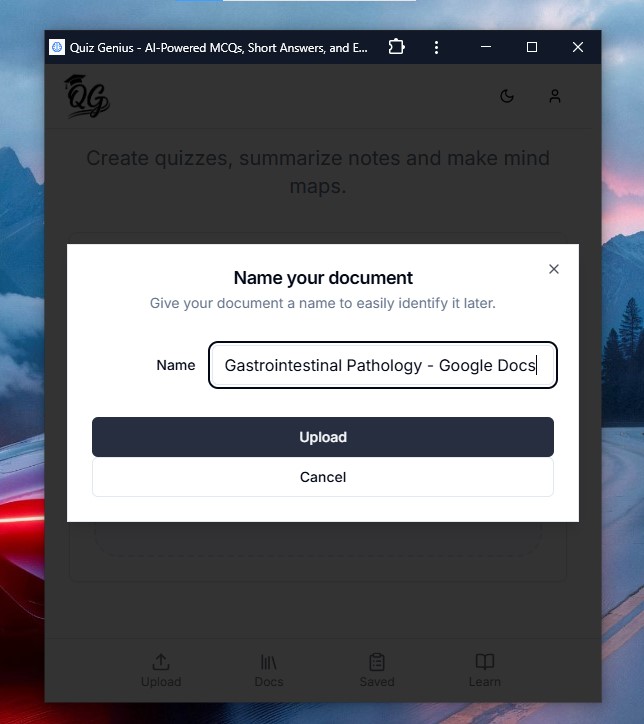
You can also name your document for easier organization:
Tip: Ensure your document text is readable. Scanned images work, but clear typed text works best!
3. Generating Your First Quiz
Once your file is uploaded:
- Go to the "Quiz" tab.
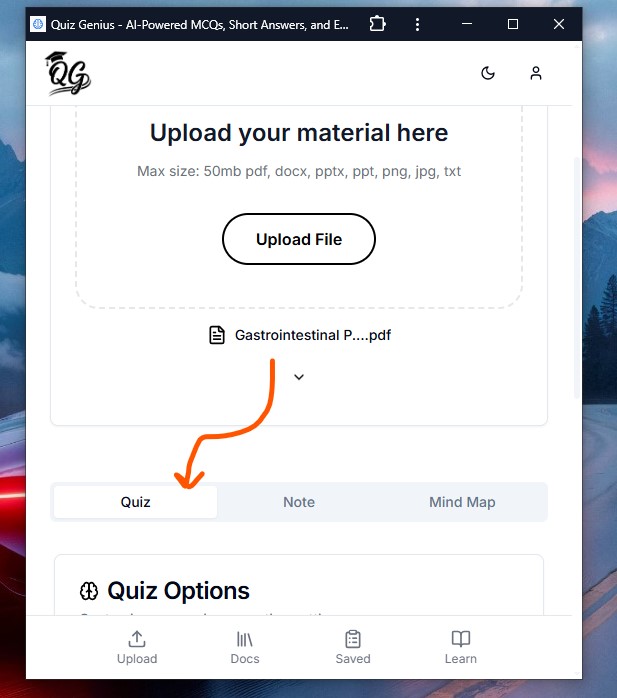
- Question Count: Choose how many questions you want (e.g., 5, 10, or 20).
- Difficulty: Select "Easy (Recall)", "Medium (Apply)", or "Hard (Analyze)".
- Type: Pick Multiple Choice, True/False, or Flashcards.
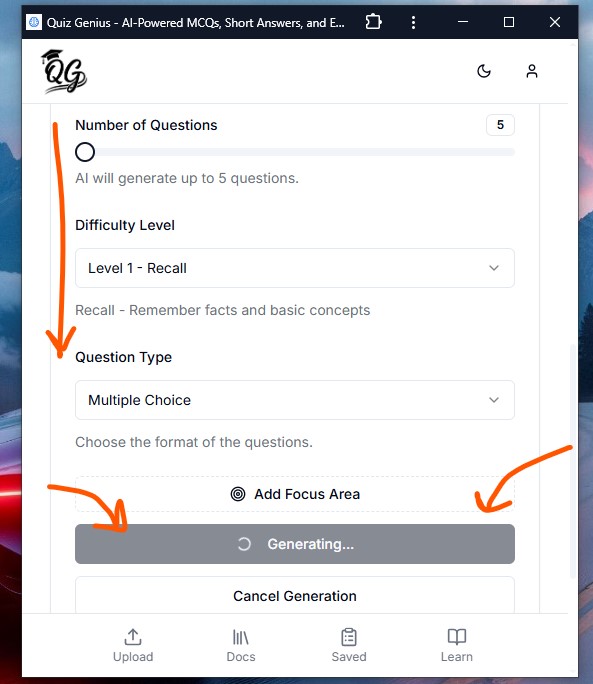
- Click "Generate Quiz".
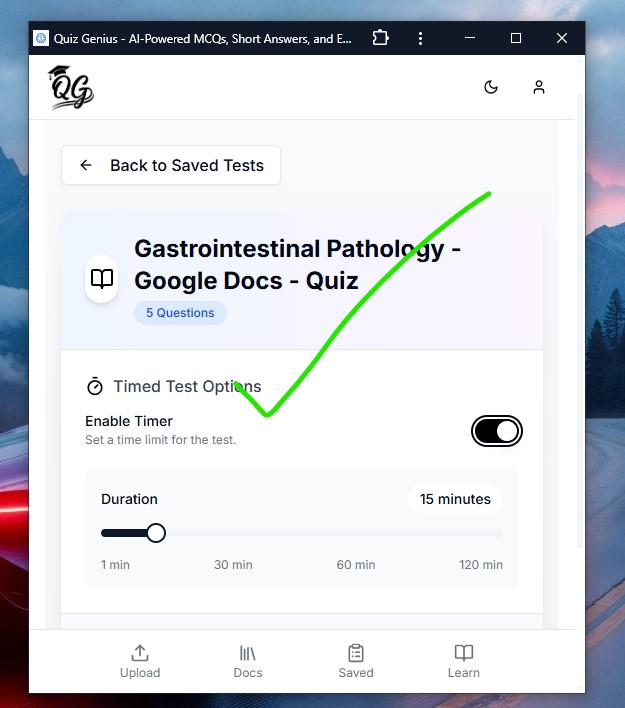
The AI will read your document and create a custom test for you.
4. Using "Learn Mode" (The AI Tutor)
Don't have a document to upload? The Learn page is your on-demand AI tutor. It has two powerful modes:
A. The Tutor Mode
Generate comprehensive lessons on any subject.
- Choose your Source:
- Topic: Type any subject (e.g., "Quantum Physics"). Feeling stuck? Click the Sparkles icon for a surprise topic!
- Web URL: Paste a link to any article.
- YouTube: Paste a video URL to turn it into a text lesson.
- Set Complexity: Choose from Beginner, Intermediate, or Advanced to match your knowledge level.
- Start Learning: The AI will create a structured lesson for you.
- Take Action: After reading, you can "Take Quiz" to test yourself immediately or "Save to Notes" to keep the lesson forever.
B. Quick Test
Just want to practice? Switch to the Quick Test tab.
- Enter a topic and instantly get a set of practice questions.
- Great for rapid-fire revision before an exam.
5. Advanced Features: The Document Hub
Once you've saved a document, you can do much more than just quiz yourself. Click on any saved document to enter the Document Hub.
Interactive Tabs
- Quiz: Generate fresh quizzes from the same document anytime.
- Mind Map: Visualize the connections between concepts in your document. Great for visual learners!
- Notes: Let AI summarize your document into clean, study-ready notes.
- YouTube: Get curated video recommendations that match your document's topic.
6. Saving & Tracking Progress
- Autosave: All your quizzes are automatically saved to your history.
- Performance: Check the "Dashboard" (Bar Chart icon) to see your scores over time.
- Retake: You can retake any past quiz to improve your score.
7. Reviewing Your Materials
All your generated content is saved for future review:
- Saved Outlines: Access your AI-generated notes from the sidebar. You can read, edit, and export them.
- Saved Mind Maps: innovative visual summaries are stored for quick revision.
8. Resources & Community
Stay updated with our latest tutorials and study tips in the Resources section (where you are right now!). We regularly post guides on:
- Study techniques (Active Recall, Spaced Repetition).
- How to get the most out of AI tools.
- New feature announcements.
Frequently Asked Questions
Q: Is it free? A: Yes! You can generate a limited number of quizzes and lessons every day for free. To unlock unlimited generations, upgrade to Pro.
Q: Can I use it for math? A: Absolutely. Quiz Genius supports LaTeX formatting for math equations in both questions and answers.
Ready to start? Go back to the Dashboard and upload your first file!